Insights
How to Fix “This Site Can’t Provide a Secure Connection”
Check the error code, compare browsers and networks, and troubleshoot clock, browser, or HTTPS settings without bypassing certificate warnings.
To fix “This site can’t provide a secure connection,” reload once, note the exact error code, and test the same URL in another browser and on another device or trusted network. If the failure is local, check your device’s clock, update your browser, and investigate site data, extensions, or connection settings one change at a time. If the same website fails across browsers, devices, and networks, contact the site owner rather than bypassing the warning. The headline message alone does not establish the cause.
Start with these checks before changing settings
Keep the URL identical during comparisons. These checks narrow the scope; they do not repair every possible cause.
- Verify the address. Confirm that you entered the intended hostname and HTTPS address, especially if you followed a link.
- Reload once. If the error remains, stop repeatedly refreshing and inspect the warning.
- Record the exact code. Use the next section to interpret it, rather than treating every secure-connection warning alike.
- Try another browser. If only the original browser fails, follow the browser and device repair steps below.
- Try another device or trusted network. If the failure follows the network, use the network checks; if one site fails across independent setups, use the owner or reporting branch.
Also check whether other HTTPS sites load. A failure affecting one domain calls for a different investigation from a failure affecting many sites.
Read the code beneath the warning
The code identifies an observed failure, but it may leave several causes open. Match it to the next check rather than applying every suggested fix.
| Code | Observed failure | Next check |
|---|---|---|
ERR_SSL_PROTOCOL_ERROR | Generic SSL/TLS protocol failure, not necessarily limited to the handshake. | Compare browsers, devices, and networks to narrow the scope. |
ERR_SSL_VERSION_OR_CIPHER_MISMATCH | Incompatible protocol or cipher parameters. | Update the browser; the owner should check supported TLS settings. |
ERR_CERT_DATE_INVALID | Certificate validity-date check failed. | Check the device clock and certificate validity dates. |
ERR_CERT_COMMON_NAME_INVALID | The certificate does not cover the requested hostname. | Verify the address; the owner should check hostname coverage. |
ERR_CERT_AUTHORITY_INVALID | The certificate’s issuing authority is not trusted. | Investigate the certificate chain and the client’s trust configuration. |
ERR_CONNECTION_CLOSED | The connection closed. The code alone identifies neither who closed it nor when. | Compare environments before assigning a cause. |
A date error usually calls for checking certificate validity, but an inaccurate device clock can also block validation. Correct the clock first when its date or time is wrong.
Find out whether the failure follows the site or your setup
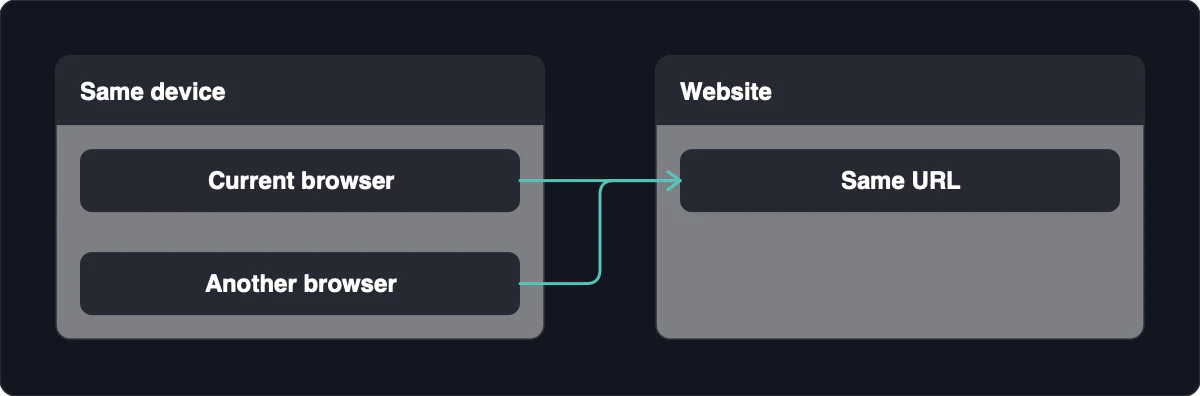
Change one variable at a time where practical. For example, testing another browser on the same device keeps more conditions constant than changing both the device and network.
| Outcome | Likely investigation path | Next action |
|---|---|---|
| One browser fails; another works | Browser-profile or browser-version differences | Update the failing browser, then test a private window. |
| Several browsers on one device fail | Device clock, software, trust, or connection settings | Follow the device repair steps and compare another device. |
| Several devices on one network fail | Network path or shared configuration | Compare a trusted independent network and check managed-network settings. |
| One site fails across independent devices and networks | Site-side HTTPS configuration | Contact the operator, or inspect HTTPS configuration if you administer it. |
Private-window success suggests profile-specific differences in most cases. Extensions, stored site data, and local certificate overrides remain competing explanations; success does not prove which one caused the failure.
One website failing across independent setups points toward a site-side problem in most cases. Browser, device, or network troubleshooting takes priority when the failure follows only that environment.
Repair browser and device problems one change at a time
Start with narrow changes and avoid broad resets. After each step, retry the identical URL; if nothing changes, restore temporary settings before continuing.
- Enable accurate automatic date and time. Check the displayed date and time afterward, since incorrect time prevents reliable certificate validation.
- Install available browser and operating-system updates. Old browsers and TLS libraries can fail against modern HTTPS servers. Reopen the browser after updating.
- Test a private window. If it works, investigate profile-specific differences rather than assuming that cache or an extension is responsible.
- Delete only the affected site’s stored data if warranted. This can sign you out. Retry before clearing anything broader.
- Disable extensions individually. Start with recently added extensions, and re-enable each unsuccessful candidate before testing another.
- Optionally clear SSL state on Windows. Open Internet Options, select Content, choose Clear SSL state, then close and reopen the browser.
Clearing Windows SSL state is a separate action from deleting cookies or clearing DNS data. If these checks leave the result unchanged, move to the network or site-side branch instead of repeating them.
Test the network without bypassing HTTPS protection
Prefer comparison on a trusted network before disconnecting a privacy tunnel or proxy. A changed result makes the connection path or configuration worth investigating in most cases, but does not identify a particular intermediary when several variables changed together.
- Compare a trusted independent connection. Keep the target URL unchanged and record the result.
- Use the network’s legitimate captive-portal login if required. Complete the network login before retrying secure sites; do not downgrade the target website to HTTP.
- Ask the administrator on managed devices. Get authorization before changing proxy or HTTPS-inspection settings.
- If necessary and authorized, briefly test a direct connection. Temporarily disconnect the tunnel or proxy, avoid sensitive browsing, and reconnect immediately afterward. Success does not prove that the provider’s infrastructure is faulty.
- Test only the relevant inspection feature. If the problem began after enabling HTTPS scanning, change only that feature briefly, then restore it even if the test fails.
Do not bypass certificate warnings or disable all security protection. Enabling obsolete SSL or TLS protocols weakens security rather than providing an appropriate repair.
If you own the site, check the HTTPS configuration
This branch is for the owner or an authorized administrator. Visitors cannot repair the website’s certificate or server configuration.
- Check validity dates and hostname coverage. Renew or reissue the certificate when indicated. A certificate for
example.commay not coverwww.example.com. - Check the intermediate certificate chain. Configure the server to send the full chain, not just the site certificate.
- Check the HTTPS listener and TLS configuration. Confirm that the intended service accepts HTTPS connections. Typical repairs include supporting TLS 1.2 and TLS 1.3 and removing obsolete cipher suites.
- Validate before a controlled reload. Check the configuration, retain a rollback path, reload according to your server’s procedure, and retest the hostname.
Use a public TLS checker only for an authorized public hostname. Private-only services need checks from an authorized client inside their network: private reachability and certificate trust are separate requirements.
Know when to stop and report the error
Visitors usually cannot repair a site-side HTTPS failure. If one site fails across independent setups, contact its operator; if many sites fail on a managed network, contact the network administrator.
Report the hostname, exact error code, time of failure, browser version, and comparison results. Remove tokens, private URL paths, and personal information from screenshots or reports.
Stop if the next proposed step requires bypassing the warning. Do not enter credentials or payment details through a connection whose security warning remains unresolved.