Insights
RDP Port: Default, Custom Listener and Gateway Ports
RDP defaults to TCP 3389 and can also use UDP 3389. Learn gateway ports, how to check the listener, and how to change it with recovery steps.
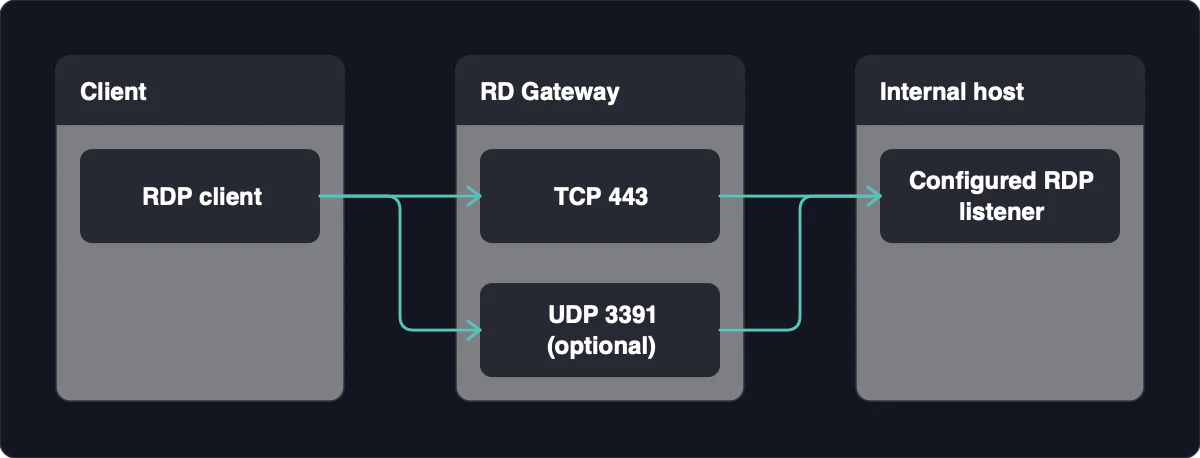
RDP uses TCP port 3389 by default. Modern RDP can also use UDP port 3389 for improved responsiveness. A custom listener can use a different port, while connections through RD Gateway typically reach the gateway on TCP 443, with UDP 3391 available for its UDP transport.
TCP is the baseline; UDP supports responsiveness
For a direct connection, the relevant port is the destination port on the RDP host. It is not the client's source port, and the default does not mean every Windows computer automatically has an active RDP listener.
| Direct RDP transport | Default destination port | Role |
|---|---|---|
| TCP | 3389 | Baseline connection to the RDP host |
| UDP | 3389 | Optional modern RDP transport that supports responsiveness when enabled and permitted |
Start troubleshooting a direct connection by checking TCP reachability to the host's configured port. If UDP is blocked, an RDP session may still work over TCP, so a failed UDP check does not by itself explain a complete connection failure.
Allow the intended transport only from approved access paths and source addresses. If TCP is reachable but the session still fails, investigate RDP configuration, authentication and authorization rather than assuming that another port must be opened.
Gateway ports are different from the host's listening port
The connection path determines which destination your client must reach. A direct client contacts the host's RDP listener; a gateway client contacts RD Gateway, which then connects to the internal host on that host's configured RDP port.
| Connection path | Client destination | Host-side listener |
|---|---|---|
| Direct, default listener | RDP host on TCP 3389; UDP 3389 when enabled | Default RDP listener on 3389 |
| Direct, custom listener | RDP host on the administrator-configured port | Configured RDP port |
| RD Gateway over HTTPS | Gateway on TCP 443 | Internal host's configured RDP port |
| RD Gateway UDP transport | Gateway on UDP 3391 | Internal host's configured RDP listener |
For a custom direct listener, specify the destination as hostname:port. The client must use the new port, and the firewall must permit it; allowing only the default port will not reach a listener configured elsewhere.
With RD Gateway, check both network segments: client to gateway, and gateway to internal host. A successful connection to TCP 443 does not prove that the gateway can reach the desktop. Likewise, UDP 3391 is the gateway's UDP path, not a replacement default listener on every Windows desktop.
Build firewall permissions around the path you actually use. Keep gateway-facing permissions separate from internal host permissions, and do not expand a generic RDP allowlist with unrelated service ports.
Check the configured port and the active listener
On a Windows RDP host you are authorized to administer, inspect configuration first and runtime state second. These checks are read-only: they do not change the listening port, restart the host or modify firewall permissions.
- Inspect the configured port. Open Registry Editor and navigate to
HKEY_LOCAL_MACHINE\SYSTEM\CurrentControlSet\Control\Terminal Server\WinStations\RDP-Tcp. InspectPortNumber, display its value using Decimal, and record it without editing or saving a change. Cancel the value dialog when finished. - Inspect current endpoints. Run
netstat -a -n -oin a Windows terminal. Find the TCP local endpoint whose port matches the recorded value and check whether it is markedLISTENING. - Identify the owning process and service. Use the PID shown by
netstatto find the process in Task Manager and inspect its associated services. This endpoint-to-process check helps distinguish the intended listener from another process using the port. - Compare the results with the client's path. Confirm whether the client connects directly to this host or through RD Gateway. The gateway's external port and the host's internal listener serve different parts of the connection.
The registry value proves the configured port, not that the service is currently listening. A matching listener proves local availability, not remote reachability, successful authentication, authorization or certificate validation.
If the configured port and active listener differ, check whether Remote Desktop is enabled and whether a restart is pending after an earlier change. If the listener matches but the client cannot connect, check the route and applicable firewall permissions. These read-only checks need no rollback, and an absent listener is not a reason to open more firewall ports.
Changing the port requires a matching firewall rule
Changing the listening port is an optional administration task, not a prerequisite for using RDP privately. Windows permits changing the RDP listening port through the registry, but the listener, firewall permissions and client destination must remain aligned.
Proceed only with authorization, a registry backup and a maintenance window. Have console or out-of-band recovery access before changing anything, because an incorrect port or rule can remove your remote access.
- Record the original configuration. Save the current decimal
PortNumbervalue and relevant firewall settings. Choose an unused port and check current listeners before assigning it. - Prepare narrowly scoped permissions first. Configure the firewall before changing the RDP port. Permit the new listener port through the host firewall and any intervening network firewall, restricting access to approved private sources. Include UDP only where that transport is intended and enabled.
- Change the listener value. In Registry Editor, open
PortNumberat the path above, select Decimal, and enter the chosen port. Keep the recorded original value and backup available for recovery. - Restart and reconnect. Restart the host during the maintenance window, then connect using
hostname:port. Check the active listener again if the destination does not respond. - Validate before removing old permissions. Confirm that an authorized session succeeds through the intended private path. Then remove obsolete permissions, including old rules for port 3389 if they are no longer needed.
If the new connection fails, use recovery access to restore the original registry value and firewall rules, then restart again. Do not keep broadening access rules to compensate for an unconfirmed listener change.
A nonstandard port can reduce routine scanning noise, but it remains discoverable and attackable when exposed publicly. Treat renumbering as a configuration choice, not a substitute for restricting access.
Keep RDP reachable through a private access path
Use an authorized private network path or a properly administered RD Gateway instead of exposing the host's RDP listener directly to the public internet. Publishing TCP 3389 publicly is a high-risk choice, and moving the listener to another port does not remove that exposure.
For a default direct connection, the network requirement is a route to TCP 3389 on the target. A routed private connection does not require public per-host port forwarding. When devices are on separate networks, provide an appropriate access path; that requirement follows the network layout, not the client's Windows version.
Keep network reachability, host firewall permission and RDP authentication separate when diagnosing failures. A working route cannot override a host firewall restriction, and an open TCP port cannot prove that an account may sign in. Keep the host patched, use Network Level Authentication and restrict access to approved accounts.
If you need a private device connection, doxx.net is a private network with firewall controls. Create an account through the website's Get Started path, use Download to get the app, and connect your devices. Configure Windows RDP, host firewall scope and account permissions separately; the private network is an access path, not an RDP server, RD Gateway or replacement for endpoint security.