Insights
How to Reduce Packet Loss
Reduce packet loss with controlled Wi-Fi, Ethernet and congestion tests. Learn how to measure results, apply targeted fixes and escalate persistent issues.
To reduce packet loss, pause bandwidth-heavy background transfers, compare Wi-Fi with an Ethernet connection, and check cables and router ports. Measure loss before and after each change. If it persists, test for congestion, update supported network drivers and router firmware, and investigate the affected service or ISP connection. Apply fixes to the segment your tests implicate rather than assuming a faster internet plan will solve it.
Start with reversible fixes and retest
Start with changes you can undo easily, then repeat the activity that showed the problem. Keep the application, destination and network load as similar as practical so the comparison tells you something useful.
- Record the symptom. Note whether you see broken voice, stalled video, game disconnects or a packet-loss reading inside the application. Record when it happens and whether other devices are affected.
- Pause competing transfers. Stop downloads, uploads, cloud backups and other nonessential traffic you control. Closing bandwidth-heavy background applications is a practical first step when congestion may be involved.
- Compare Wi-Fi with Ethernet. Test the same device and application over a wired connection. Improvement on Ethernet points toward Wi-Fi interference, distance or weak signal, rather than immediately implicating your internet service.
- Check the physical connection. Reseat the cable, then substitute a known-good cable or another suitable router port. Change these separately so you can tell which substitution helped.
- Restart your own router if practical. Coordinate with other users first because a restart interrupts their connections and your remote sessions. Restarting means rebooting the device, not using its factory-reset function, which erases configuration.
An improvement gives you a useful lead, not necessarily a confirmed root cause. If pausing transfers helps, investigate load; if Ethernet helps, investigate Wi-Fi. Unchanged results mean you should establish the baseline below before making broader changes.
Measure loss while the problem is happening
Packet loss means packets fail to reach their destination; latency is the time traffic takes to travel, and jitter is variation in that delay. A connection can have high latency or uneven timing without showing packet loss, so record these separately.
-
Start with the affected application. Enable its network statistics if available and watch them while the symptom occurs. This keeps the measurement tied to the traffic you actually need to fix.
-
Choose responding comparison targets. Test your local gateway, a public endpoint and the affected endpoint where permitted. Comparing multiple targets, including the gateway and application endpoint, helps separate local connectivity from broader problems.
-
Run a short Windows sample. In Windows Command Prompt, the following command sends 50 pings to Cloudflare’s server:
ping -n 50 1.1.1.1For your gateway, find the default gateway address in your active network adapter’s connection details. Replace
YOUR_GATEWAY_ADDRESSbelow with that verified address:ping -n 50 YOUR_GATEWAY_ADDRESSOrdinary ping needs no administrator elevation and changes no settings, so there is nothing to restore afterward. Run it only against destinations you are authorized to test; press
Ctrl+Cto stop it. -
Repeat and record. Save the destination, time, connection type, sent and received counts, reported loss and latency. Compare samples during symptoms and quiet periods, and extend observation when the problem is intermittent.
Ping measures replies to diagnostic traffic, not every packet used by your application. A problem limited to a game or real-time application may not show up in ping, while a target that does not answer may simply reject diagnostic requests. Treat endpoint loss alongside application symptoms as a stronger reason to investigate than either result alone.
Separate device and Wi-Fi faults from upstream problems
The most useful next test follows the pattern of affected devices and destinations. Compare results under similar conditions, and treat each pattern as a lead rather than proof.
| Observed pattern | Likely area to investigate | Next test |
|---|---|---|
| Loss on Wi-Fi improves on Ethernet | Wireless signal, interference or the wireless adapter | Repeat the same application test near the router, then compare another device |
| Loss affects only one device | That device’s adapter, software or local connection | Substitute its cable and port separately, then compare another device on the same network |
| Multiple internet targets show loss, but the responding gateway stays clean | Shared internet connection or paths beyond the gateway | Repeat wired tests on another device and compare quiet with busy periods |
| Only one application or destination is affected | Application, destination service or its path | Check that application’s statistics and service status, then test other destinations |
Wi-Fi interference becomes a useful lead when wired tests improve under comparable conditions. When loss persists on Ethernet, device, cable, port and upstream checks become more useful. Keep substitutions controlled: changing the device and cable together makes it harder to know which change mattered.
Traceroute or MTR can optionally show where diagnostic responses stop or slow down, but they do not automatically identify a faulty router. Some routers limit how often they send ICMP TTL Exceeded responses, so an isolated intermediate-hop timeout can reflect diagnostic-response rate limiting rather than lost forwarded traffic.
Look for persistent destination loss and matching application symptoms before blaming a router or ISP. Keep your protective router and firewall in place during testing; connecting an unprotected device directly to a modem is not a necessary troubleshooting shortcut.
Reduce competing traffic before tuning QoS
Loss that appears under load makes traffic reduction a useful next step. Excessive traffic can overload a network and cause packet loss, but increased delay during a busy period is not itself proof that packets are missing.
- Compare quiet and busy conditions. Repeat your application and endpoint tests with bulk transfers paused, then compare them with the conditions that normally trigger the issue.
- Cap or schedule nonessential traffic. Move cloud backups and large transfers away from calls or other real-time work. Include uploads as well as downloads when checking what competes for the connection.
- Consider supported QoS or queue management. Quality of Service, or QoS, allocates constrained capacity among traffic types; it does not create bandwidth. If your router supports it, follow its documented configuration and prioritize the real-time traffic you need.
- Save, change and compare. Record the original settings, change a policy, then rerun the same tests. Compare application network statistics with QoS enabled and disabled, and revert if performance worsens.
If stopping a backup improves both the application and its loss reading, scheduling or limiting that transfer is a targeted response. If only latency improves, you have reduced delay but have not demonstrated reduced packet loss. When loss persists during quiet periods, cable, port and adapter substitutions are more useful than repeatedly adjusting traffic priorities.
Update or replace only the components your tests implicate
Software updates and hardware replacement are most useful after controlled tests narrow the problem to a device or link. Replacing a router before checking the cable, adapter and affected destinations can leave the actual fault untouched.
- Follow the substitution results. If a known-good cable repeatedly removes the symptom while the original cable brings it back, replace that cable. Apply the same reasoning to a port or adapter, and confirm the result across comparable tests.
- Use supported software channels. Obtain network drivers and router firmware from the relevant vendor’s supported distribution channel. If symptoms began after a driver update, consider the vendor-supported rollback route and compare the previous version.
- Prepare for router changes. Proceed only if you own the router or have administrator permission, have local access, and have saved its configuration. Read the manufacturer’s recovery instructions before updating, and do not interrupt power or the update process.
- Follow firmware instructions exactly. Manufacturer guidance may require additional steps after an update, including restoring defaults. Treat that as a specific maintenance requirement, not a reason to factory-reset every connection with packet loss.
- Inspect documented interface counters if available. Technical users can check whether interface errors rise during the symptom. Interpret those counters using the device documentation and alongside substitution results, not as a diagnosis by themselves.
After each update or replacement, repeat the original test before changing anything else. If the result is unchanged, return to the other implicated areas rather than continuing to replace parts. Blanket TCP tuning, DNS flushing, factory resets and disabling firewalls are not routine packet-loss fixes; DNS changes do not generally repair loss on an already established connection.
Test private connections without exposing your services
A private connection adds a path that you should distinguish from the underlying internet connection. Keep access controls intact while testing: making a private service publicly reachable changes its exposure, not just the quality of the comparison.
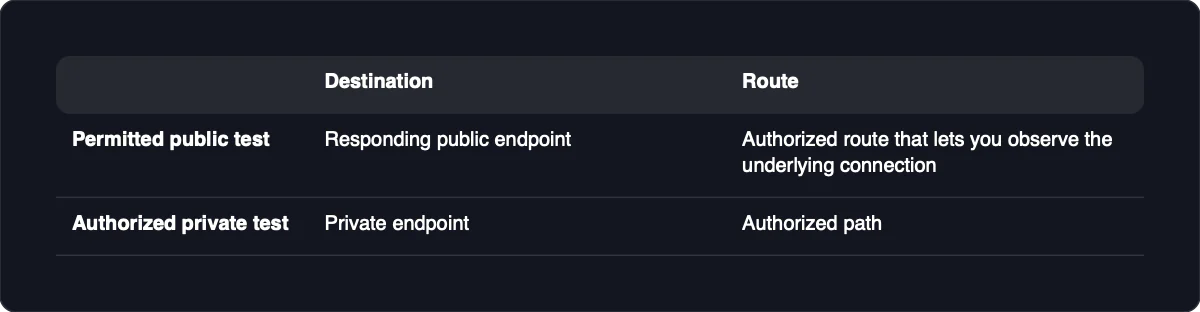
- Test the underlying connection where policy permits. Use a responding public endpoint through an authorized route that lets you observe the underlying connection. Do not disconnect a required protected connection or disable a kill switch to obtain this result.
- Test the private endpoint through its authorized path. Use the affected application’s statistics and supported diagnostics. Keep firewall rules and private-service access restrictions unchanged.
- Label the destinations and paths clearly. A public endpoint test and a private-service test reach different destinations, so they are not a like-for-like route comparison. A clean public test narrows the investigation but does not prove the route to the private service is healthy.
- Investigate tunnel-specific behavior when indicated. If only the tunneled application fails, consult the tunnel provider’s supported diagnostics and MTU guidance. MTU means maximum transmission unit, the largest packet size allowed on a link; tunnel-related loss can involve server load, transport behavior or MTU mismatches.
If policy prevents a separate underlying-connection test, ask the network administrator for an approved diagnostic method. Do not guess a universal MTU or publish a self-hosted service just to make it easier to probe. A private or encrypted connection does not repair damaged cables, faulty Wi-Fi or an unavailable remote service.
Escalate persistent loss with before-and-after results
Broadly affected destinations justify investigating the shared connection; a single affected service calls for checking that service and its path first. A remote game-server problem may be beyond anything you can fix locally, and the same distinction matters when choosing whom to contact.
- Check the affected service’s status. An outage or service incident can explain application symptoms even when your other connections work. Avoid changing the whole network to address a destination-specific failure.
- Contact the appropriate operator. For repeated loss across internet destinations after local checks, contact your ISP or network administrator. For a problem confined to a service or private path, start with that service operator or the administrator responsible for the path.
- Provide a reproducible record. Include timestamps and timezone, connection type, affected applications, repeated endpoint results, and the cable, port, device or software changes already tried. Distinguish measured packet loss from latency and application disconnects.
- Describe route findings cautiously. Report a suspected location, not a definitive fault or direction of loss based on an intermediate-hop timeout. Before posting logs publicly, redact account details, private addresses and sensitive service names.
After a local change or operator intervention, rerun the baseline with the same targets and durations under comparable load. Check the affected application as well as ping, then monitor during the conditions that previously triggered the problem. A single clean sample shows improvement during that sample, not a permanent fix.