

Insights
CGNAT port forwarding: why router rules aren't enough
Router rules alone usually can't provide inbound access under CGNAT. Compare public addresses, private connections, tunnels and IPv6.
On this page
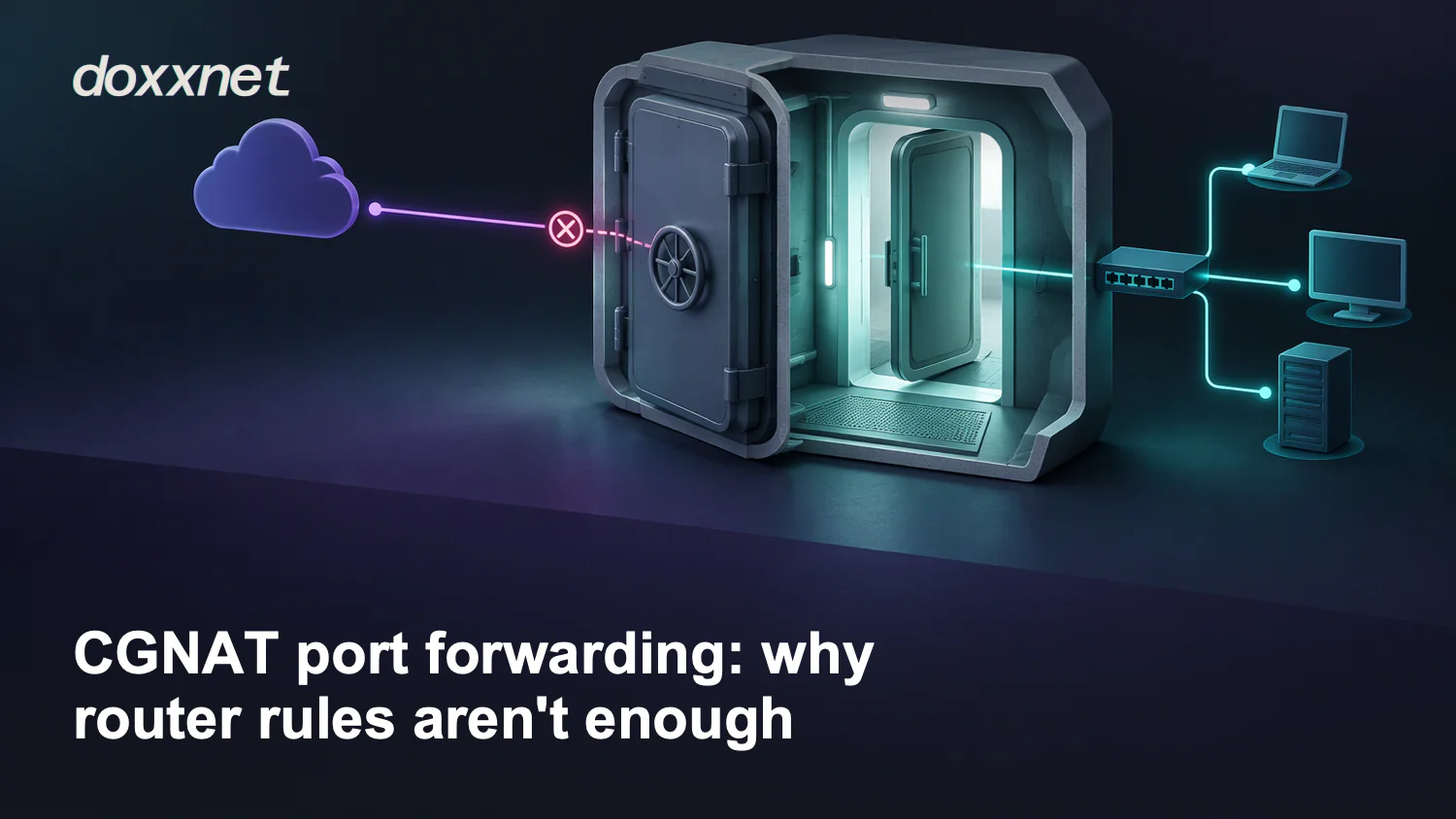
You usually can't make a device reachable through carrier-grade network address translation (CGNAT) by adding a port-forwarding rule on your router alone. Your internet service provider (ISP) controls another translation layer upstreamOpens in a new tab. You'll need an ISP-supported inbound mapping, a public address or another route, such as an outbound tunnel.
In short:
- Router rules aren't enough. Your local rule doesn't change the ISP's upstream mapping.
- Public access. Use a public address, a supported ISP mapping or a public tunnel endpoint.
- Private access. A connection both devices join may be enough without publishing a port.
Why your router rule stops at your ISP
Your router forwards incoming traffic to a device on your home network. With CGNAT, traffic sent to the shared public address reaches the ISP's translation layer first. Your local rule doesn't tell that layer which customer device should receive a new inbound connection.
Provider-side forwarding can work when the ISP explicitly supports the required mapping. A meeting proposal for enhanced port forwardingOpens in a new tab requires support for endpoint-independent port forwarding in the carrier's CGNAT system. That proposal doesn't mean the feature is deployed by your ISP or available as a router setting.
Dynamic domain name system (DNS) updates can keep a name pointing at a changing address. They don't create an inbound mapping at the ISP. A router restart or local automatic-forwarding setting doesn't remove that upstream layer either.
Check where your public address ends
These read-only checks help you find where address translation may occur. They don't change your router or expose a service.
1. Record your router's internet-facing address.
Open your router's status page and find its wide area network (WAN) address for Internet Protocol version 4 (IPv4). Record the address shown for the internet connection, not the router's local address.
2. Compare it with the public IPv4 seen from that connection.
Use a public-address check from a device on the same connection. Compare IPv4 with IPv4, and account for any proxy or other service routing the check elsewhere.
Different addresses show an upstream address difference, not proof of ISP CGNAT. Another router you control can also create an upstream translation layer. Matching addresses show agreement between the two observations, but don't prove that any port is open.
3. Find out who controls the upstream layer.
If another router sits between yours and the ISP, check its internet-facing address too. If you can't account for the difference, ask your ISP to confirm whether your connection uses CGNAT.
Ask whether it offers a public IPv4 address or an inbound mapping for your required application. Also ask about inbound port restrictions. The useful result is knowing who holds the public address and who can control its mapping.
Choose a route for the access you need
First decide who needs access. If it's only your devices and both ends can join a private connection, you may not need to publish a port. For public access, check available public IPv4 or Internet Protocol version 6 (IPv6), your application's protocol, and whether you're willing to run a relay.
Use this table to choose the endpoint your clients will reach.
| Access route | Who connects | Required condition | Checks needed |
|---|---|---|---|
| ISP public IPv4 | Outside clients you allow | ISP supplies a public address | Router rule, firewall, ISP port policy |
| ISP inbound mapping | Outside clients you allow | Carrier explicitly supports the mapping | Assigned port, protocol, mapping conditions |
| Private shared connection | Devices joining that connection | Both ends can join | Device access, authentication, application support |
| Public tunnel or relay | Outside clients you allow | Outbound connection to a reachable public endpoint | Protocol support, authentication, public exposure |
| IPv6 access | Compatible IPv6 clients | IPv6 available at both ends | Service configuration, address, firewall permission |
Public doesn't mean static. Public describes reachability from outside your home network. Static describes whether the address changes. A dynamic public IPv4 address can support forwarding, so ask about a public address before paying for a static one. Availability and charges follow your ISP's policy.
A public address delivered over a tunnel is another route, but renting a server alone doesn't connect your home service to it. You'll need an outbound connection and a reachable endpoint that carries the traffic your application uses. An ordinary outbound privacy service doesn't necessarily include inbound forwarding.
IPv6 offers a separate route for inbound access, but it doesn't open an IPv4 port. Your service and intended clients must support IPv6, and the firewall must allow the traffic. IPv4-only clients need an additional compatible proxy or relay to reach an IPv6-only service.
Before choosing, write down the endpoint clients will reach, who controls any inbound mapping, and whether access is private or public. If you can't name those, resolve the gap with your ISP or connection provider before changing exposure. This selects an access route, not a working configuration or a guarantee of compatibility.
Check the service after you change the route
Only change devices you own or administer. Save the original settings so you can restore them if access breaks, and remove any test exposure afterward. Keep firewall controls in place, and don't publish remote administration directly to the internet.
1. Confirm that the service works locally.
Check that the service is running on the intended device. Use the intended application to connect from your local network. A successful local connection shows that the service works on that path, not that it's publicly reachable.
2. Check the destination and traffic type.
Make sure the forwarding rule or tunnel points to the intended device and application port. Match the required transport protocol, which is the traffic type the application uses. Get those values from the application's documentation.
3. Check the ISP's inbound policy.
A public address removes the CGNAT obstacle to ordinary forwarding, but ISP port blocks can still stop your chosen service. Confirm that the ISP permits the required inbound port. If it's blocked, use a permitted, application-supported route instead of weakening your firewall.
4. Test from a separate connection.
Use the intended application from outside your home connection. For private access, make sure the test device has joined the private connection first.
A successful test shows that the tested client can reach the service through that route. A failed test alone doesn't locate the fault. Recheck the service, destination, protocol, mapping and firewall permissions before widening access.
Where doxx.net fits. doxx.net offers direct device-to-device connections, but those facts don't establish CGNAT traversal or public service forwarding. If private device accessOpens in a new tab fits your goal, create a doxx.net account, download the app and connect a device or agentOpens in a new tab.