

Insights
Split DNS: How one hostname gets different answers
Learn how split DNS returns different answers for one hostname, how to set up each lookup path, and how to check for missing records.
On this page
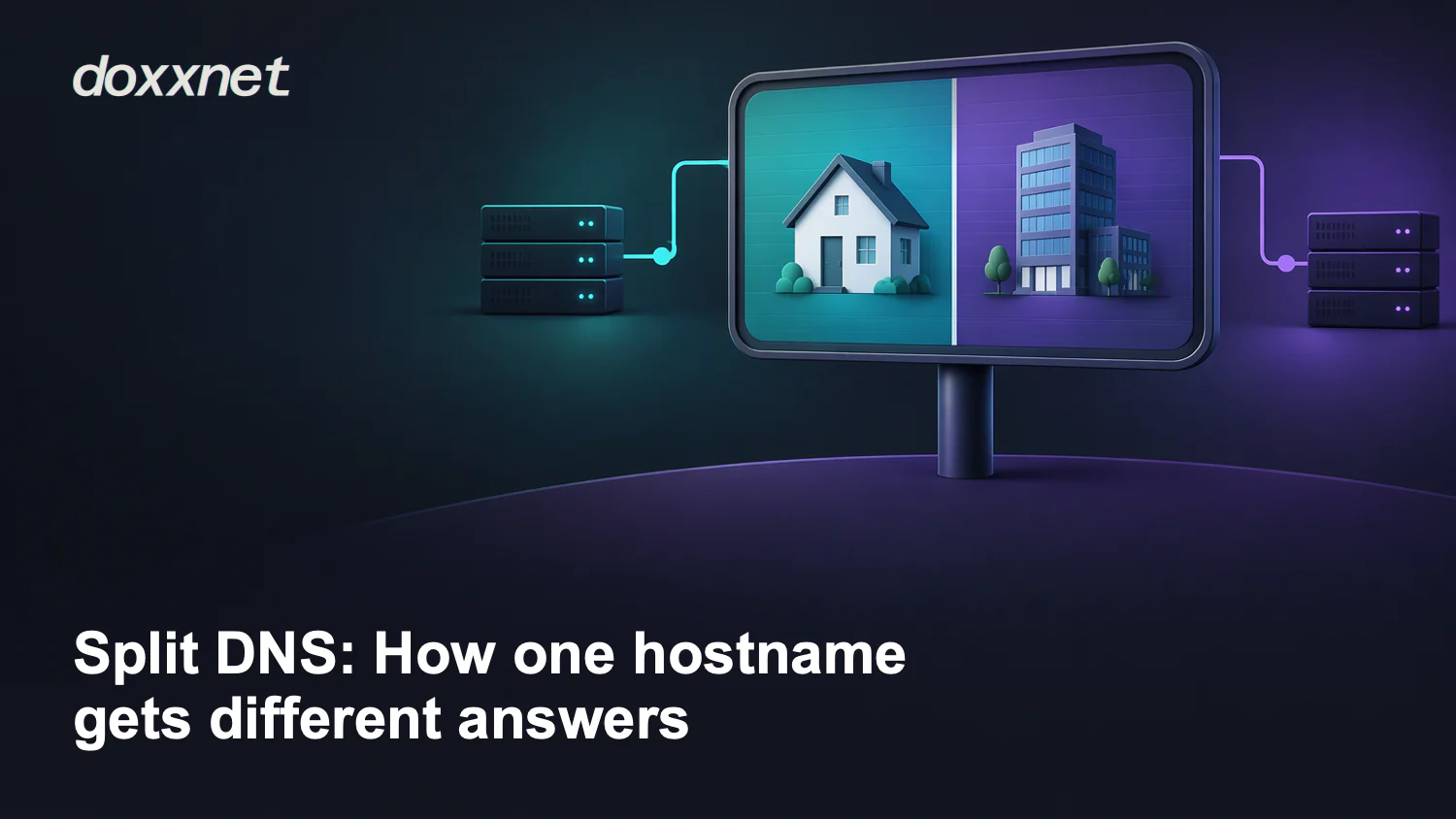
Split DNS, short for split Domain Name System and also called split-horizon DNSOpens in a new tab, lets the same hostname return different answers. On your private network, portal.example.com might point to a private address, while off the network it might point to a public one. The answer depends on which set of DNS records, or view, handles the lookup.
In short:
- Check the view. A successful lookup can still return the wrong address for your connection.
- Keep needed records. A private zone can hide a public record your users still need.
- Test access separately. The right DNS answer doesn’t grant access to the service.
What changes when you look up the same name
A resolver is the DNS service that looks up names for your device. In the portal example, the private lookup path leads to the internal view and the public path leads to the public view. Your device can get the public address even while connected to the private network if it still uses the public lookup path.
How to set up the two lookup paths
- Set the records for each view. List the names your users need and what each should return on and off the private network. For the portal, put the private address in the internal view and the public address in the public view.
- Choose how clients reach each view. Decide which resolver should handle lookups from devices on the private network, including remote devices connected to it. Keep off-network clients on the public lookup path if they should get the public answer.
- Forward only the suffix that needs it. If only names ending in a private suffix such as
internal.example.comneed special handling, send those queries to the private resolver on systems that support rules based on the queried nameOpens in a new tab. Leave other lookups on their usual path. - Keep the public records your internal clients need. An authoritative private zoneOpens in a new tab is a set of records the private DNS server answers from for a domain. It doesn’t use the public copy to fill gaps. If the private
example.comzone has no record forwww.example.com, no wildcard that covers it and no delegation that sends the lookup elsewhere, the name can fail inside even though it works outside.
Why getting an address doesn't grant access
Leaving a private dashboard’s name out of public DNS keeps that record out of the public view. It doesn’t control who can connect. A device can get the right address and still lack a route to the dashboard or permission to use it. Use private routes, firewall rules and service permissions to control access.
How to check which answer your device gets
Pick one hostname whose answer should change and one public hostname in the same zone that should resolve both inside and outside. Fill in the expected addresses before testing. Use the device’s normal lookup path instead of pointing the test at a resolver by hand. Record what you get for both names on and off the private network.
| Hostname and connection | Expected result | Observed result | Next check |
|---|---|---|---|
portal.example.com on private network | Private address: [fill in] | [address or failure] | Public answer: check which resolver and view answered |
portal.example.com off private network | Public address: [fill in] | [address or failure] | Wrong answer: check the public lookup path |
www.example.com on private network | Public address: [fill in] | [address or failure] | Failure: compare with the off-network result |
www.example.com off private network | Public address: [fill in] | [address or failure] | Failure: check the public record |
If the portal returns the right address inside but www.example.com fails only there, check the private zone for the www record before changing resolver settings. That pattern tells you where to look first. It doesn’t prove the record is missing.
The DNS check passes when the portal returns the intended address on each connection and the public name resolves on both. Record service reachability separately for each connection: [opens / doesn’t open / not tested]. If the address is right but the service won’t open, check the route, firewall and service permissions. These results cover only the names and lookup paths you tested, not every app on the device.
Where doxx.net fits. doxx.net encrypts DNS lookupsOpens in a new tab and blocks unwanted domains, which is separate from setting up split DNS. If you want to connect a device to the private network, you can download the doxx.net appOpens in a new tab.